![GGUF Quantization: Shrink LLMs 72% in 12 Steps [2026]](https://drs-web.co.uk/wp-content/uploads/2026/09/promo-9-150x150.png)

Isn’t it wild that the same model powers billion-dollar chatbots and a laptop sitting on your desk? By the end of this guide, you’ll have a working local Llama installation, a config that actually fits your hardware, and a clear answer to the question everyone asks eventually: is it cheaper to run this myself, or just pay the API bill? We’ll walk through exactly how to run Llama locally, what it costs in real terms, and which tool to reach for at each stage of a project.
Prerequisites

Image: NeuraPlus AI (via techjacksolutions.com og:image)
Before you start, you’ll need:
- A machine with a modern GPU (or patience, if you’re going CPU-only)
- Basic command-line comfort – you’ll be running terminal commands, not clicking through installers
- At least 16GB of system RAM for smaller models; more for anything above 8B parameters
- No prior LLM experience required, but knowing what a “parameter count” roughly means will help
You do not need a data centre. You do not need a machine learning degree. You need a terminal and about twenty minutes.
Step 1: What does it actually take to run Llama locally?
Running Llama locally means installing inference software on your own hardware and loading model weights directly, with no API calls leaving your machine. The catch is that “locally” covers everything from a MacBook running a 3B model to a rack of GPUs serving Llama-3.3-70B to hundreds of users.
One clarification worth making before anything else: Llama is open-weight, not open-source in the strict sense. Meta publishes the trained parameters and lets you download, run, and fine-tune them under a custom licence with commercial-use conditions attached above certain user thresholds – but the training data, the training code, and the full methodology stay closed. That distinction matters if your organisation has a compliance team asking “can we actually use this?” The weights are free to run; the recipe that produced them isn’t published.
Here’s the myth-vs-reality moment worth clearing up early: a lot of people assume self-hosting a serious model means renting a data centre. Reality is closer to a home lab. Ollama, llama.cpp, and vLLM have matured to the point where community tooling support for open-weight models is considered excellent across the board as of 2026, covering everything from laptop-scale inference to production serving. The gap between “hobbyist setup” and “production-grade” is now a config file, not a research team.
That said, the hardware maths is real and worth doing honestly before you buy anything.
Step 2: How much GPU memory do you actually need?
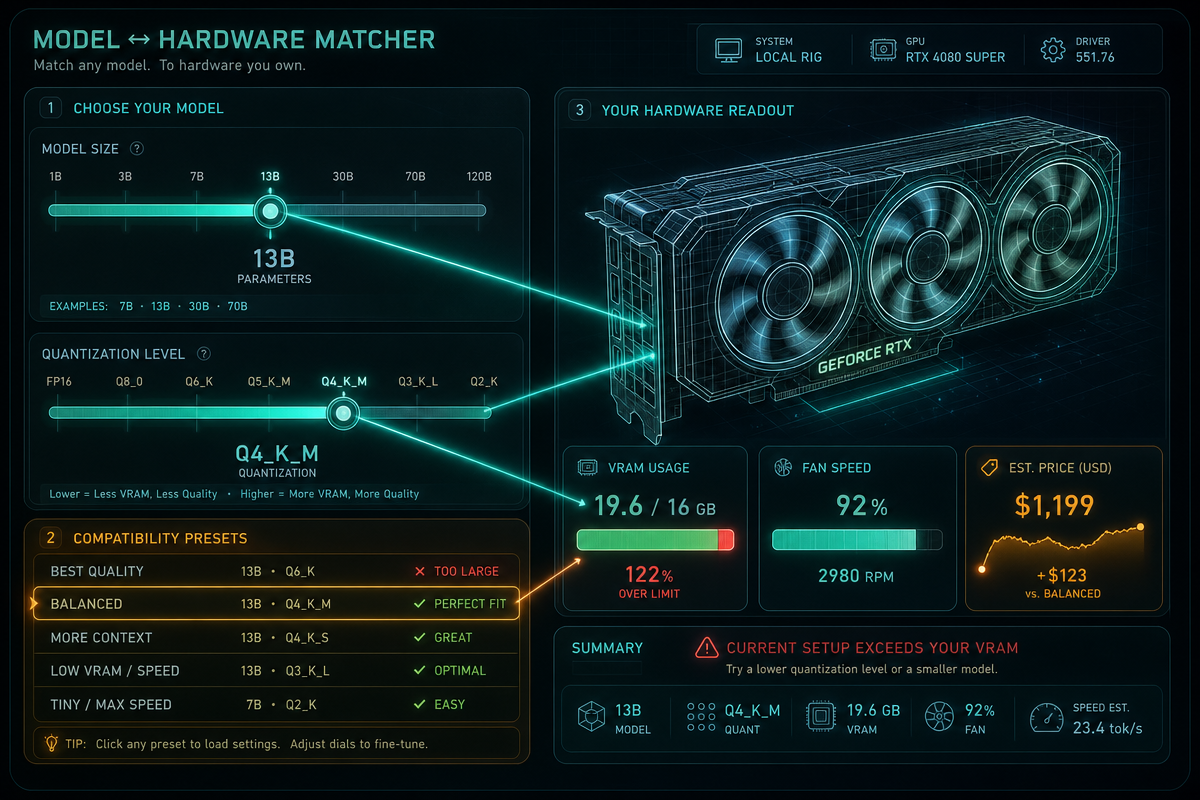
The honest answer: it depends entirely on precision and model size, and the numbers are bigger than most people expect. At full bf16 precision, self-hosting llama-3.3-70b-instruct requires a minimum of 138GB of GPU memory, with 180GB recommended for headroom. Drop to fp8 precision and that requirement roughly halves – 69GB minimum, 90GB recommended.
Those numbers assume you’re running the raw model weights. Quantisation changes the picture substantially – and it’s worth naming the formats you’ll actually encounter, because “quantised” isn’t one thing. GGUF is the format llama.cpp and Ollama use, with quant levels like Q4_K_M (a good default balance of size and quality) and Q8_0 (near-lossless, but nearly double the size). GPTQ and AWQ are the formats you’ll see on vLLM and Hugging Face TGI deployments, optimised for GPU inference throughput rather than portability. The trade-off across all of them is the same shape: lower bit-depth shrinks memory and speeds up inference, but degrades the model’s ability to follow nuanced instructions and increases the odds of subtly wrong output on tasks like arithmetic or code. Running Llama-3.3-70B locally through Ollama at a Q4 quant requires at least 53GB of VRAM [citation needed], which puts it within reach of a single high-end workstation GPU or a dual-GPU consumer setup – no data centre required.
Common mistake: people size their GPU purchase around the model’s parameter count alone and forget context length. A widely used rule of thumb is that serving an LLM needs 1.2x to 1.5x the model size in VRAM just for weights and basic overhead – but long contexts push requirements much higher. A 70B model serving a 32k context window needs considerably more memory than the baseline figure suggests, because the key-value cache scales with context length, not just parameter count. If you’ve provisioned exactly enough VRAM for the model and then wonder why it crashes on long conversations, this is why.
Step 3: What does this actually look like on real hardware?
The numbers above are abstractions until you map them onto a machine you might actually own. Three concrete starting points:
Apple Silicon (M-series Mac). Unified memory is the trick here – the GPU and CPU share the same RAM pool, so a 64GB MacBook Pro can load models that would need a dedicated GPU on other platforms. An 8B model in Q4 quantisation runs comfortably on 16GB of unified memory at roughly 15-25 tokens per second on an M2/M3; a 70B model in Q4 needs around 40-48GB of unified memory and drops to somewhere in the 5-10 tokens/second range – usable for one-off queries, sluggish for a chat loop. No CUDA, no driver fuss; ollama run just works through Metal.
NVIDIA consumer GPU. A single RTX 4090 (24GB VRAM) handles 8B-13B models at Q4-Q8 quantisation with plenty of headroom, typically 40-70 tokens/second – fast enough to feel conversational. Pushing a 70B model onto a single 4090 means going down to aggressive Q2-Q3 quantisation, which starts costing you real output quality; two 4090s (48GB combined) at Q4 is the more sensible entry point for 70B-class local serving.
CPU-only. Viable, not pleasant, for smaller models. A modern desktop CPU with 32GB+ of system RAM can run an 8B model in Q4 through llama.cpp at somewhere around 3-8 tokens/second – fine for testing a pipeline overnight, painful for interactive use. Don’t attempt 70B on CPU alone unless you enjoy watching a progress bar; the token rate drops into “make a cup of tea” territory.
If your hardware doesn’t clear the bar for the model you want, the fallback is always the same: drop model size before you drop quantisation quality. Llama-3.2-3B or Llama-3.1-8B at Q5-Q8 will consistently outperform a 70B model crushed down to Q2 on the same VRAM budget.
Step 4: How do you install and run your first model?
The fastest path to a working local Llama setup is Ollama, and you can be running a model within five minutes. Install it, then pull a model:
curl -fsSL https://ollama.com/install.sh | sh
ollama pull llama3.3
ollama run llama3.3
You should see a download progress bar, then a prompt where you can type directly. If you see Error: model requires more system memory, it means your quantised model still exceeds available RAM – drop to a smaller quantisation level or a smaller model size before troubleshooting anything else.
For a quick API-style test instead of interactive chat:
curl http://localhost:11434/api/generate -d '{
  "model": "llama3.3",
  "prompt": "Explain quantization in one sentence.",
  "stream": false
}'
This hits Ollama’s local REST API and returns a JSON response with the model’s answer. Why this matters: once you can hit a local endpoint like this, swapping a cloud API call for a local one in your own application is often a one-line change – same request shape, different URL.
Step 5: Which serving stack should you actually pick?
If you’re prototyping alone, use Ollama. If you’re serving multiple concurrent users in production, use vLLM. That’s the standard 2026 stack advice, and it holds up because the two tools are built for different jobs, not different skill levels.
Ollama is explicitly designed for single-user local use – simple, low-friction, great for development. For enterprise multi-GPU serving, vLLM and Hugging Face TGI are the two production-grade open-source options available, handling concurrent requests, batching, and multi-GPU scheduling in ways Ollama isn’t built for. NVIDIA also sells NIM as a paid, containerised deployment option for teams that would rather not manage that infrastructure themselves – worth flagging clearly as a commercial product rather than an open-source alternative, since it sits alongside vLLM and TGI in comparisons but isn’t free. Check NVIDIA’s own documentation for current licensing terms and supported hardware before budgeting around it, since both change.
Before/after: before this stack matured, running a 70B model in production meant hand-rolling batching logic and memory management yourself. After vLLM, that’s a pip install and a config file.
Step 6: Does self-hosting actually save you money?
Sometimes – but only if you account for hardware, power, and your own time, not just the sticker price of a GPU. Llama 3.3 itself is free to download and run under Meta’s licence. The real cost of self-hosting is the hardware, typically $3,000 to $10,000 upfront for a capable rig, plus ongoing electricity. A single high-end GPU under sustained inference load draws somewhere in the 300-450W range; run that continuously and you’re looking at a meaningful line item on your power bill, not a rounding error – budget it explicitly rather than assuming “it’s just electricity.”
Compare that against cloud APIs that charge per token – Together AI, for instance, lists pricing in the sub-$1-per-million-token range for models in this class, though exact rates change often enough that you should check current pricing pages rather than trust a number in an article. Do the maths for your actual usage before committing. A team burning through millions of tokens daily on a cloud API will break even on hardware within months. A hobbyist running occasional queries will never recoup a $5,000 GPU purchase versus a pay-as-you-go API. Budget honestly across hardware, power, and engineering time rather than fixating on GPU cost alone – the engineering time to maintain a serving stack is a real, recurring cost that’s easy to forget when you’re excited about a new GPU.
Next steps
Once your local setup is running reliably, the natural next moves are quantisation tuning (finding the smallest quant that still meets your quality bar), setting up monitoring so you know when VRAM is close to its ceiling, and experimenting with LoRA fine-tuning if you need domain-specific behaviour. Before scaling any of this into a production deployment, benchmark your actual workload’s tokens-per-second and error rate at your chosen quant level – the numbers above are starting points, not guarantees, and they shift with every driver and framework update.
Frequently Asked Questions
Q: How much VRAM do I need to run Llama 3.3 70B locally?
A: At minimum, around 53GB of VRAM with Q4 quantisation through Ollama. Full bf16 precision needs 138GB minimum (180GB recommended), while fp8 precision needs 69GB minimum (90GB recommended).
Q: Is Ollama or vLLM better for running Llama locally?
A: Ollama is best for single-user development and prototyping, while vLLM is built for production serving with multiple concurrent users and multi-GPU setups.
Q: Is Llama open-source?
A: No – it’s open-weight. Meta releases the trained model parameters for download and use under its own licence, but not the training data or full training code, so it doesn’t meet the strict definition of open-source.
Q: Is it cheaper to self-host Llama than use a cloud API?
A: It depends on usage volume. Hardware costs $3,000-$10,000 upfront plus electricity (expect 300-450W under load on a high-end GPU), versus cloud APIs charging per token – high-volume users break even faster than occasional users.
Q: Why does my local Llama setup run out of memory with long conversations?
A: Long context windows require far more VRAM than the base model size suggests, because the key-value cache scales with context length. Sizing your GPU around parameter count alone, without accounting for context length, is a common mistake.
Q: Can I run Llama on a MacBook or CPU-only machine?
A: Yes. Apple Silicon Macs use unified memory, so an 8B model in Q4 runs well on 16GB at roughly 15-25 tokens/second; CPU-only setups can run 8B models at Q4 but expect single-digit tokens/second, which is workable for testing but not for interactive use.
Source: https://techjacksolutions.com/ai-tools/meta-llama/how-to-run-llama-locally/
This article was researched and written with AI assistance, then reviewed for accuracy and quality. Nia Campbell uses AI tools to help produce content faster while maintaining editorial standards.
Need help with your web project?
From one-day launches to full-scale builds, DRS Web Development delivers modern, fast websites.
![GGUF Quantization: Shrink LLMs 72% in 12 Steps [2026]](https://drs-web.co.uk/wp-content/uploads/2026/09/promo-9.png)