

Here’s the expanded article body.
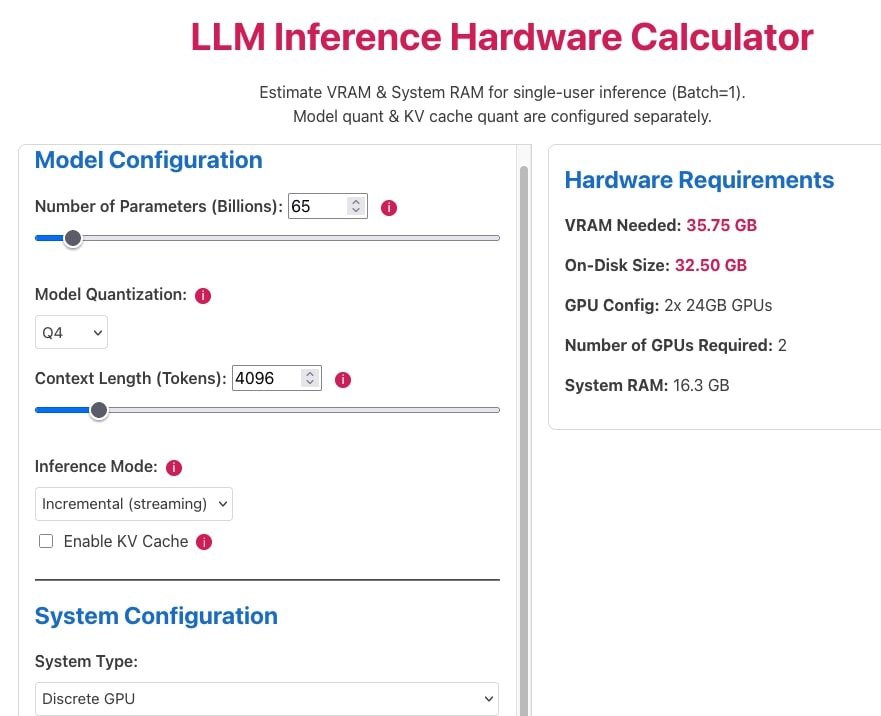
Image: NextBigFuture
A calculator that ends the “just buy more RAM” advice for local LLMs. You’ll come away knowing precisely how many gigabytes a given model needs, why the number isn’t what you’d guess from parameter count alone, and which model fits your machine right now.
Prerequisites: you’ll want a rough idea of your system’s total RAM (or VRAM if you’re running a discrete GPU), and familiarity with the term “parameters” as used to size language models (a 7B model has seven billion of them). No coding experience is required for the calculator itself, though we’ll show the CLI equivalent for anyone scripting this into a build pipeline.
Picture the moment: you’ve just downloaded a 70B model, hit “load,” and watched your machine grind to a halt while swap thrashes the disk. That’s the scene this tool is built to prevent. Sizing a local LLM has always involved guesswork – “try it and see if it crashes” – because the actual relationship between parameter count, quantisation, and usable memory was never laid out plainly. The LLM hardware requirements calculator fixes that by turning the guesswork into arithmetic you can check yourself.
What is an LLM hardware requirements calculator?
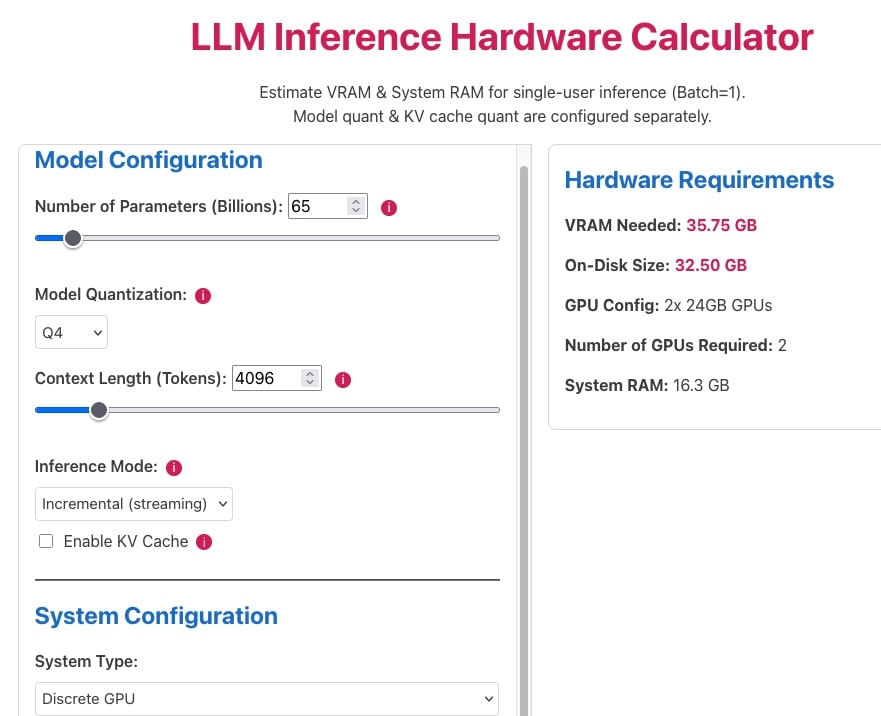
Image: NextBigFuture
An LLM hardware requirements calculator estimates how much RAM or VRAM a given model needs at a given quantisation level, then tells you which models will actually run on your hardware without swapping or crashing. ModelFit’s version does this by combining a per-billion-parameter memory figure with a budget for how much of your total system memory is realistically available to the model – the rest is reserved for the operating system, the inference runtime, and context.
Here’s the distinction most guides blur: the file you download, the weights once loaded into memory, and the total memory the process actually consumes are three different numbers. The download is often compressed slightly differently from how it sits in RAM; the loaded weights are what the 0.6 GB/B figure below describes; and total consumption is loaded weights plus runtime overhead plus whatever the context window and its KV cache (a running memory of every token processed so far, kept so the model doesn’t have to recompute it) are using at that moment. Every out-of-memory crash on a model that “should” fit is really a gap between the second number and the third.
The core number to memorise is this: at Q4 quantisation, a local LLM needs roughly 0.6 GB of loaded-weight memory per billion parameters. That’s why a 9B model needs around 5.4 GB and a 70B model needs around 42 GB – it’s a straight multiplication, not a mysterious black box. Q4 (4-bit quantisation) is the default most people should plan around, because it strikes the best balance between model quality and memory footprint for consumer hardware; higher-precision formats like Q8 roughly double that per-billion figure. Treat 0.6 GB/B as ModelFit’s stated methodology rather than a universal physical constant – actual loaded size varies a little by architecture and quantisation implementation, so use it for planning and let the calculator’s per-model figures have the final say.
How much RAM do you actually need for a local LLM?
You need more than just “model size in GB” – you need headroom for the runtime and context window too, which is why ModelFit doesn’t let a model claim your entire pool of memory.
Step 1: Know your usable memory budget, not your total RAM.
Here’s the part most guides skip. ModelFit budgets about 70% of Apple unified memory for model weights on machines up to 32GB, scaling up to roughly 85% at 128GB and above. On a discrete GPU, it budgets about 90% of VRAM, since a dedicated GPU doesn’t share memory with the OS the way unified memory does.
# Example: 16GB unified-memory Mac
16 GB x 0.70 = 11.2 GB usable for model weights
That 11 GB figure is the ceiling you’re actually working with – not 16 GB. This is the single most common mistake: people see “16GB of RAM” and assume they can load a 16GB model. You can’t, and if you try, you’ll hit swap or an out-of-memory crash.
Step 2: Match that budget against parameter count using the 0.6 GB/B rule, then leave room for context.
# Rough model footprint at Q4 quantisation
model_GB = parameters_in_billions * 0.6

# Example: a 9B model
9 * 0.6 = 5.4 GB
Here’s where a model can pass the first test and still fail the second. Take a 14B model at Q4: loaded weights come to roughly 8.4 GB, which fits comfortably inside an 11.2 GB budget on a 16GB Mac – on paper, a clean pass. But run it with a 32K-token context window, and the KV cache alone can add another 3-4 GB depending on the model’s attention architecture, pushing total consumption past 11.5 GB. The model that “fit” by weight size now doesn’t fit at all once the runtime and context are counted. This is the gap Step 1 warns about, made concrete: a short 4K-token context might cost a few hundred megabytes, while a long 32K-token conversation can cost several gigabytes, because KV cache size scales with context length. Longer conversations, larger PDFs pasted into the prompt, and bigger retrieval-augmented generation (RAG) payloads all quietly eat into the same pool the model weights come from.
Step 3: Use the tier guidance as a sanity check. ModelFit’s practical bands: 8GB of RAM comfortably runs models up to around 9B parameters, 16GB runs up to around 14B, 32GB unlocks 35B-class models, and 64GB or more gets you into 70B-class territory. These bands already assume a modest context window – if you routinely run long contexts, size down a tier from what the band suggests.
Step 4: Plug your real numbers into the calculator itself. Rather than doing this by hand every time, open the LLM hardware requirements calculator, enter your total memory and platform (Apple unified memory or discrete GPU), and let it rank models for you. This is the calculator’s actual value over the arithmetic above: it isn’t just running the same 0.6 GB/B multiplication you could do on a napkin, it’s cross-referencing your budget against a maintained dataset of real model variants, their measured file sizes, and estimated throughput, then ranking what fits – work you’d otherwise have to redo by hand for every model release. On a 16GB unified-memory machine, for example, it budgets about 11 GB for the model and surfaces Qwen3.5 9B Instruct at Q4_K_M as the top pick – a 7 GB footprint with an estimated ~22 tokens per second. That’s a real recommendation, not a rule of thumb you have to interpret yourself.
Common mistake: assuming “16GB RAM” means “16GB of usable model memory.” It doesn’t – your OS, browser tabs, and the inference runtime itself all eat into that pool before the model gets a byte, and your context window eats into whatever’s left. If you see out-of-memory errors on a model that “should” fit by parameter count alone, this is almost always why.
How many models can actually run on your machine?
The honest answer is: fewer than you’d hope at low memory tiers, and it scales non-linearly as you add RAM. ModelFit’s dataset covers 81 local models across 22 families, and at 16GB, only 38 of those 81 actually fit within budget. Push up to 128GB and that climbs to 76 of 81. This is useful precisely because it kills the myth that “most models will run on most machines” – at the lower end, over half the field is simply off the table, no matter how much you tweak settings.
What about multi-GPU setups?
Multi-GPU setups work by splitting model layers across cards, but they don’t scale memory or speed as cleanly as you’d expect from adding up VRAM. Ollama and llama.cpp handle this by pooling roughly 90% of your combined VRAM across cards and dividing model layers between them – so two 12GB cards behave, on paper, like one ~21.6GB pool.
If you see lower tokens-per-second on a dual-GPU setup than a single card with equivalent total VRAM, it means you’re paying the inter-GPU transfer tax. Data has to move between cards as layers hand off computation, and the slower card in the pair sets the pace for the whole system. Multi-GPU is a real way to fit bigger models than a single card allows – it’s just not a free speed multiplier, and the calculator’s estimates account for that gap rather than pretending it away.
Head-to-head: the calculator versus guesswork
Guesswork gets you a crashed inference server and a wasted afternoon; the calculator gets you a ranked list of models with realistic speed estimates before you download anything. The trade-off is that ModelFit’s tokens-per-second figures are estimates derived from memory bandwidth and model size, not measured benchmarks – so treat them as a planning guide, not a guarantee, and validate against your actual hardware once you’ve picked a candidate. The same caveat applies to the 0.6 GB/B rule and the memory-tier bands above: they’re documented methodology, useful for back-of-envelope checks, but the calculator’s per-model output is the number to trust when you’re actually deciding what to download.
One more thing worth knowing: the calculator runs entirely in your browser, with no sign-up and no data sent to a server, and the underlying compatibility dataset is open under CC BY 4.0. The same sizing engine also ships as a free CLI tool if you’d rather script it:
npx @wecko-ai/modelfit
That’s handy if you’re provisioning several machines and want consistent sizing decisions baked into a setup script rather than checked by hand each time. The dataset was last updated 2026-08-26, so re-run your check periodically as new model releases land.
Next Steps
Once you’ve picked a model that fits your budget, the next skill worth learning is how to tune context window size against your remaining memory headroom – as the 14B example above shows, a larger context window eats into the same pool the model weights come from, and it’s the second most common cause of out-of-memory crashes after the mistake covered in Step 1. From there, look at quantisation trade-offs beyond Q4 (Q5, Q6, Q8) to see where quality gains stop being worth the extra gigabytes for your specific use case.
If you’re building a product around local inference and need help sizing infrastructure or wiring up a reliable pipeline, drs-web.co.uk/contact offers professional development support to get it production-ready.
Frequently Asked Questions
Q: How much RAM does a local LLM need per billion parameters?
A: At Q4 quantisation, a local LLM needs roughly 0.6 GB of loaded-weight memory per billion parameters, according to ModelFit’s stated sizing methodology – treat it as a planning figure rather than an exact physical constant, since actual footprint varies slightly by architecture.
Q: How much of my RAM can actually be used for the model?
A: ModelFit budgets about 70% of Apple unified memory for model weights on machines up to 32GB, scaling to around 85% at 128GB and above, and about 90% of VRAM on a discrete GPU – the rest is reserved for the OS and runtime.
Q: What’s the biggest model I can run with 16GB of RAM?
A: 16GB comfortably runs models up to around 14B parameters with a modest context window; on a 16GB unified-memory Mac, ModelFit’s top pick is Qwen3.5 9B Instruct at Q4_K_M, with a 7 GB footprint and an estimated ~22 tokens per second.
Q: Why can a model that fits by parameter count still run out of memory?
A: Loaded weights are only part of total memory use – the context window’s KV cache scales with how many tokens you’re processing, so a 14B model that fits at Q4 with a short prompt can push past your budget once you load a long conversation or document into context.
Q: Does adding a second GPU double my usable VRAM and speed?
A: It pools roughly 90% of your combined VRAM so you can fit bigger models, but throughput typically falls below a single card of equivalent total VRAM due to inter-GPU transfer overhead and the slower card pacing the whole system.
Q: Are the tokens-per-second numbers from the calculator measured benchmarks?
A: No – they’re estimates derived from memory bandwidth and model size, not measured benchmarks, so use them for planning and validate against your actual hardware afterwards.
Source: https://modelfit.io/calculator/
This article was researched and written with AI assistance, then reviewed for accuracy and quality. Nia Campbell uses AI tools to help produce content faster while maintaining editorial standards.
Need help with your web project?
From one-day launches to full-scale builds, DRS Web Development delivers modern, fast websites.