


Last updated: June 29, 2026
By the end of this guide, you will have a working MCP server written in TypeScript, registered with Claude Code, and exposing a custom count_words tool that Claude can call mid-conversation. You’ll understand not just the mechanics – the how – but the reasoning behind each decision, so you can adapt the pattern to your own tools confidently.
We’ll build a simple file-word-count tool as the example: concrete enough to learn from, minimal enough to see the whole shape clearly.
Prerequisites
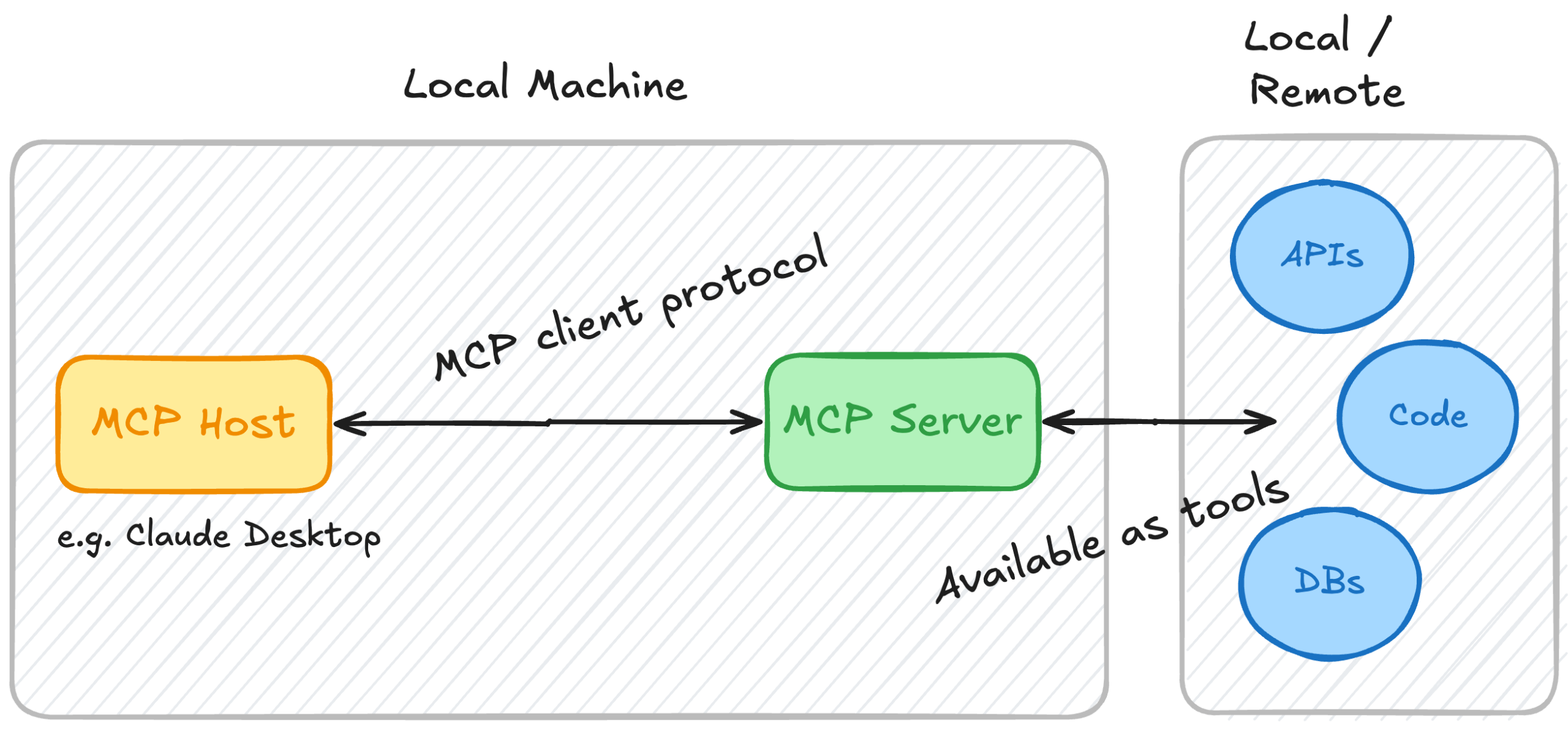
Image: hackteam.io
Before diving in, make sure you have the following:
- Node.js 18 or later – check with
node --version. You should see something likev20.11.0. - npm 9+ – check with
npm --version. Output should be9.x.xor higher. - TypeScript familiarity – you should understand interfaces,
async/await, and generics. Expert-level knowledge is not required. - Claude Code installed and authenticated – run
claude --versionto verify. This is the CLI that will host your server. - A text editor with TypeScript support (VS Code works well for this).
You do not need any prior experience with MCP. We’ll cover the concepts as we go.
What Is an MCP Server and Why Should You Build One?
An MCP server is a lightweight process that exposes tools and resources to a connected AI. Think of it as a plugin system with a standardised protocol. Claude Code connects to your server over standard input/output (stdio), asks it what tools are available, and then calls those tools on your behalf when they’re relevant to a task.
The Model Context Protocol is an open standard developed by Anthropic [citation needed]. It defines a consistent interface so that any MCP-compatible client – Claude Code, Claude Desktop, or third-party tools – can talk to any MCP server without custom glue code. You write the server once, and any compliant client can use it.
Why TypeScript specifically? TypeScript gives you autocomplete on the MCP SDK’s types, catches schema mismatches at compile time, and produces clean, maintainable code. For a production server you’ll be iterating on, that matters a great deal. If you’re already comfortable in a typed language like those used when following PyCharm: The only Python IDE you need, you’ll find TypeScript’s type system equally rewarding here.
TypeScript MCP Server Tutorial: Step-by-Step
Step 1 – Initialise the project
Create a new directory and initialise a Node.js project:
mkdir my-mcp-server
cd my-mcp-server
npm init -y
Expected output: npm will generate a package.json and print Wrote to .../my-mcp-server/package.json.
Now install the MCP SDK and the TypeScript toolchain:
npm install @modelcontextprotocol/sdk
npm install --save-dev typescript @types/node ts-node
Expected output: you’ll see added N packages with no peer-dependency warnings. If you see warnings about missing peers, double-check you’re on Node.js 18+.
Step 2 – Configure TypeScript
Create a tsconfig.json at the project root:
{
  "compilerOptions": {
    "target": "ES2022",
    "module": "Node16",
    "moduleResolution": "Node16",
    "outDir": "dist",
    "strict": true,
    "esModuleInterop": true
  },
  "include": ["src/**/*.ts"]
}
The Node16 module setting is important. The MCP SDK ships ES module exports, and Node16 tells TypeScript to resolve imports in the way Node.js actually does – including the .js extension on local imports. Without this, you’ll get module-not-found errors at runtime even though the code compiles.
Step 3 – Create the server entry point
Create a src/ directory and a src/index.ts file:
import { Server } from "@modelcontextprotocol/sdk/server/index.js";
import { StdioServerTransport } from "@modelcontextprotocol/sdk/server/stdio.js";
import {
  CallToolRequestSchema,
  ListToolsRequestSchema,
} from "@modelcontextprotocol/sdk/types.js";
import { readFileSync } from "fs";

const server = new Server(
  {
    name: "my-mcp-server",
    version: "1.0.0",
  },
  {
    capabilities: {
      tools: {},
    },
  }
);
This creates a Server instance with a name, version, and a declaration that it supports tools. The capabilities object is sent to the client during the handshake – it tells Claude what this server can do before any tool listing occurs. Declaring tools: {} is what causes Claude Code to subsequently call tools/list.
Step 4 – Register your tools
Add a handler for the tools/list request. This is what Claude calls to discover available tools:
server.setRequestHandler(ListToolsRequestSchema, async () => {
  return {
    tools: [
      {
        name: "count_words",
        description:
          "Counts the number of words in a local text file. Useful for checking document lengths before processing or summarising.",
        inputSchema: {
          type: "object",
          properties: {
            filePath: {
              type: "string",
              description:
                "Absolute path to the file to count words in, e.g. /home/user/docs/report.txt",
            },
          },
          required: ["filePath"],
        },
      },
    ],
  };
});
The inputSchema follows JSON Schema format. Claude reads this schema to understand what arguments to pass when calling the tool. The description strings do more work than they appear to – Claude uses them to decide both whether to invoke the tool at all, and how to construct arguments. A vague description like “counts words” is much less effective than one that explains the use case.
Common mistake: Using relative file paths in
filePath. MCP servers run as separate processes with their own working directory, which will differ from the directory you launched Claude Code from. If a user says “count the words in report.txt”, Claude needs guidance to provide an absolute path. Make this expectation explicit in both the description and any examples you include in the schema.
Step 5 – Implement the tool handler
Now handle the tools/call request:
server.setRequestHandler(CallToolRequestSchema, async (request) => {
  if (request.params.name === "count_words") {
    const { filePath } = request.params.arguments as { filePath: string };

    try {
      const content = readFileSync(filePath, "utf-8");
      const wordCount = content
        .trim()
        .split(/\s+/)
        .filter((word) => word.length > 0).length;

      return {
        content: [
          {
            type: "text",
            text: `The file at ${filePath} contains ${wordCount} words.`,
          },
        ],
      };
    } catch (error) {
      return {
        content: [
          {
            type: "text",
            text: `Error reading file: ${(error as Error).message}`,
          },
        ],
        isError: true,
      };
    }
  }

  throw new Error(`Unknown tool: ${request.params.name}`);
});
Why readFileSync rather than the async readFile? MCP tool calls are already executed asynchronously by the server dispatch layer – each call arrives as a discrete awaited request. Using synchronous I/O inside the handler is perfectly safe and eliminates a layer of promise handling. For files you’d expect to be large (video, large binary assets), you’d switch to streaming, but for text files the synchronous approach is clearer and entirely acceptable.
Return errors using isError: true rather than throwing. This lets Claude handle the failure gracefully and report what went wrong, rather than crashing the entire tool call. If you throw instead, the MCP protocol marks the whole call as a transport-level failure – the user sees a generic error with no context.
If you see Claude respond with “I encountered an error calling the tool” but no detail – check your error handler. If you’re throwing instead of returning
isError: true, the error message is lost before it reaches the user.
Step 6 – Connect the transport and start the server
Add the startup code at the bottom of src/index.ts:
async function main() {
  const transport = new StdioServerTransport();
  await server.connect(transport);
  console.error("MCP server running on stdio");
}

main().catch((error) => {
  console.error("Fatal error:", error);
  process.exit(1);
});
Notice console.error rather than console.log. Because MCP uses stdout for its protocol messages, anything written to stdout interferes with communication. Every log line in an MCP server must go to stderr.
If you see garbled JSON output in your terminal, or Claude reports it cannot parse the server response – this is almost always a rogue
console.log. Search your entire codebase forconsole.logand replace every instance withconsole.error. This catches you out at least once.
Step 7 – Build and register with Claude Code
Add build and start scripts to package.json:
{
  "scripts": {
    "build": "tsc",
    "start": "node dist/index.js"
  }
}
Build the project:
npm run build
Expected output: the TypeScript compiler runs silently and exits with code 0. A dist/ directory will appear containing index.js and index.d.ts. If you see type errors, check that your tsconfig.json uses "module": "Node16" and that you’re importing with .js extensions on local paths.
Now register the server with Claude Code:
claude mcp add my-mcp-server node /absolute/path/to/my-mcp-server/dist/index.js
Use the absolute path to dist/index.js. Claude Code will launch the process at session start and keep it running throughout the session. Verify the registration:
claude mcp list
Expected output: you should see a line like my-mcp-server: node /absolute/path/to/dist/index.js. If the server does not appear, re-run the add command and check that the path exists.
What successful tool registration looks like: start a new Claude Code session and run claude. Ask Claude: “What tools do you have access to?” It should list count_words among the available tools. Now try: “How many words are in /etc/hosts?” Claude will invoke the tool automatically, and you’ll see something like: “The file at /etc/hosts contains 42 words.” If Claude attempts to answer from memory instead of invoking the tool, check that you opened a fresh session after registering.
If Claude says “I don’t have a tool for that” despite registration – confirm you started a new session after running
claude mcp add. The server list is read at session startup; an existing session will not detect newly registered servers.
Nuances Most Developers Miss
Schema descriptions do more work than you think. Claude’s decision about when to call your tool relies heavily on the description fields in your schema. “Counts words in a file” will work for direct requests, but adding context about when the tool is useful – “useful for checking document lengths before processing or summarising” – gives Claude far more signal. Invest time in these strings before you invest time anywhere else.
Structured logging helps enormously. As your server grows, debugging becomes tricky because stdout is reserved. Consider writing structured JSON logs to a file alongside your console.error calls, similar to the patterns explored in Laravel Logging: A Practitioner’s Guide. The same principles – log levels, context, correlation IDs – apply equally well to MCP servers.
Tool granularity matters. One tool per concern is better than one Swiss-army-knife tool with an action parameter. Claude handles multiple sequential tool calls well; it handles ambiguous interfaces poorly. If you find yourself switching on an action argument inside a single handler, that’s a strong signal to split into separate tools.
Restart after changes. Claude Code launches your server process at session start. After rebuilding with npm run build, start a fresh Claude Code session. The old process will not pick up code changes automatically, and no error will tell you this has happened.
If you see unexpected behaviour after editing your server – for example, old error messages or missing tools – always suspect a stale session. Quit Claude Code entirely, reopen it, and test again.
Next Steps
Once your first server is running, here are productive directions to explore:
- Add resources – MCP supports resources (static or dynamic content Claude can read) alongside tools. These are useful for exposing configuration files, documentation, or live data feeds that Claude should be able to reference without being explicitly asked.
- Add prompt templates – Servers can expose pre-built prompt templates that appear in Claude’s interface, letting you package domain-specific instructions alongside your tools.
- Explore the high-level
McpServerclass – The SDK offers a higher-level abstraction that reduces boilerplate considerably. It’s worth exploring once you have a solid grasp of the low-levelServerclass you’ve used here. - Publish your server – Community MCP servers are listed in public registries. A well-documented server with clear schema descriptions can save other developers significant time.
- Connect to your content stack – If you’re running a web operation, MCP servers integrate naturally with publishing pipelines. Is There a WordPress Replacement in 2026? is useful context if you’re thinking about where your MCP tools might publish content.
We started by asking what it would look like to give Claude genuine new capabilities rather than just better prompts. After working through this TypeScript MCP server tutorial, you have a concrete answer. The server you’ve built isn’t a toy – the same patterns (define the schema, handle the call, return structured content) scale directly to production tools connecting to databases, external APIs, and file systems.
The Model Context Protocol ecosystem is still growing fast, and building familiarity now – while the surface area is small – is a practical investment that compounds quickly.
If you’d like help building a custom MCP server or integrating AI tooling into your development workflow, the team at DRS Web Solutions is happy to talk through your requirements.
Frequently Asked Questions
Q: What is an MCP server in Claude Code?
A: An MCP server is an external process that exposes tools and resources to Claude via the Model Context Protocol. Claude Code launches the server, queries its capabilities, and calls its tools automatically during conversations when they’re relevant to the task at hand.
Q: Do I need to know TypeScript to build an MCP server?
A: Basic TypeScript familiarity is sufficient – understanding interfaces, async/await, and generics will carry you through. The MCP SDK’s types do a lot of the guiding work once your editor is set up correctly.
Q: Why does my MCP server produce garbled output in Claude Code?
A: The most common cause is writing to stdout via console.log. MCP uses stdout for its protocol messages, so any extra output breaks communication. Replace all console.log calls with console.error to write to stderr instead.
Q: How do I update my MCP server after making changes?
A: Rebuild the TypeScript with npm run build, then start a fresh Claude Code session. The server process is launched at the start of each session, so an existing session will not pick up code changes automatically.
Q: Can one MCP server expose multiple tools?
A: Yes – return an array of tool definitions from your ListToolsRequestSchema handler and handle each tool name in your CallToolRequestSchema handler. Most production servers expose several related tools grouped by domain.
Q: Why use readFileSync instead of the async version?
A: MCP tool calls are already dispatched asynchronously by the server layer, so synchronous I/O inside a handler is safe and keeps the code simpler. Reserve async file streaming for very large files where blocking the event loop would matter.
This article was researched and written with AI assistance, then reviewed for accuracy and quality. Kev Parker uses AI tools to help produce content faster while maintaining editorial standards.
Need help with your web project?
From one-day launches to full-scale builds, DRS Web Development delivers modern, fast websites.